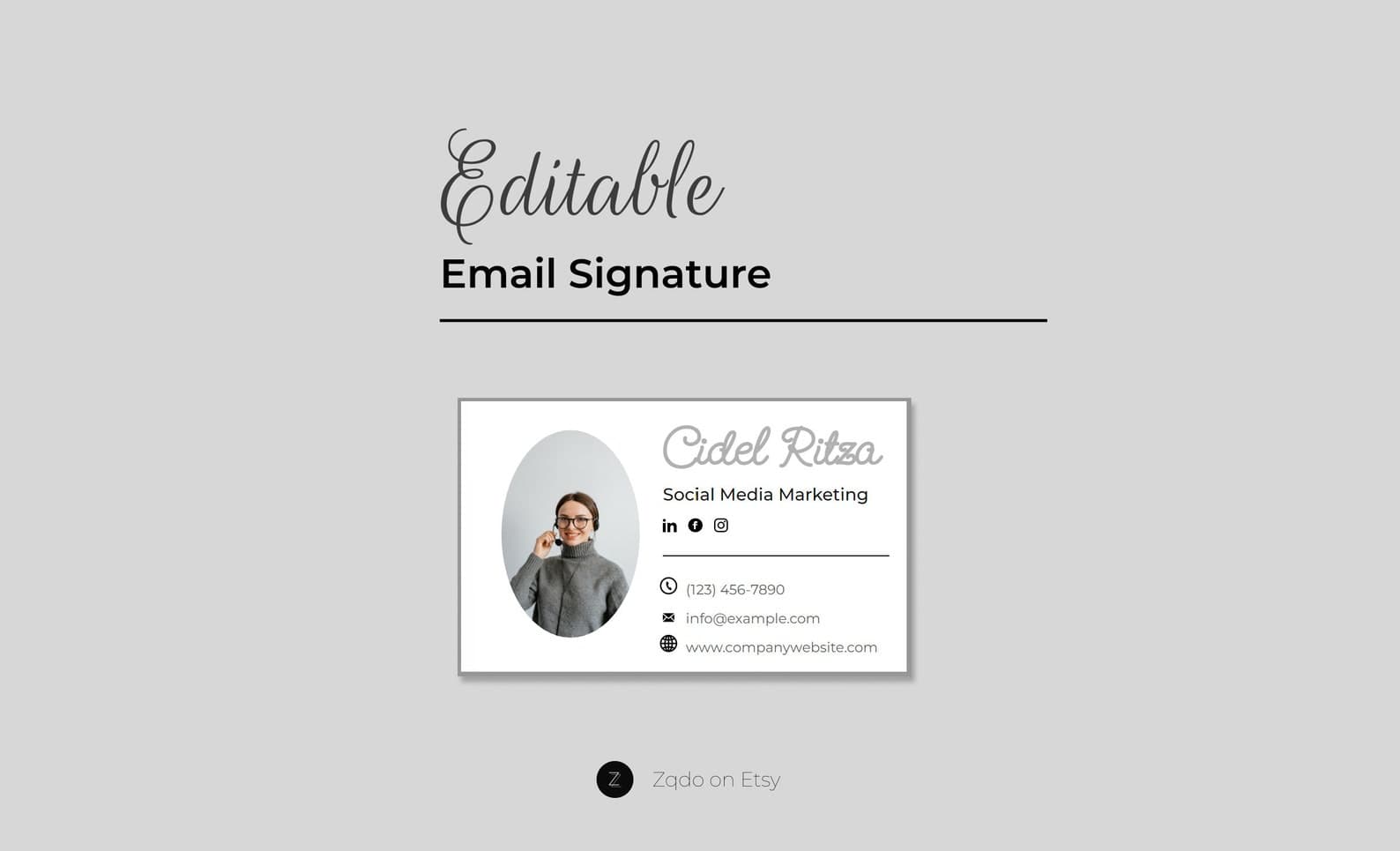
HTML Email Signature Template with Photo
A professional HTML email signature with photo and logo—minimal editable design for business email.
Email Signatures · Guide
Step-by-step setup for a Gmail email signature that looks professional on desktop and mobile.
Updated August 8, 2026 · 6 min read
In Gmail, open Settings → See all settings → General, scroll to Signature, create a new signature, paste your formatted details or template, then choose when Gmail inserts it for new emails and replies.
Decide the text content first: name, title, company, phone, website, and any single CTA. When the words are ready, formatting in Gmail becomes much faster.
Many ready-made email signature templates are built for Gmail workflows. You edit your details in the provided files, then paste or import the finished signature into Gmail settings. Follow the listing instructions carefully—different templates use slightly different install paths.
| Problem | Likely fix |
|---|---|
| Signature missing on mobile app | Desktop settings control signatures; reinstall and check defaults |
| Logo too large | Reduce image width and file size |
| Links not clickable | Highlight text and insert a proper hyperlink |
| Looks different in replies | Assign a shorter reply signature under defaults |
Yes. Gmail allows multiple signatures so you can use different identities or a shorter version for replies.
Signature setup is primarily controlled from Gmail on the web. Confirm default assignments and that you are signed into the same account.
Not always. Many professionals use a full signature on new emails and a shorter one on replies to reduce clutter in long threads.
Ready-to-edit Zqdo digital products. Purchase happens on Etsy; this site is here to help you choose the right starting point.
A professional HTML email signature with photo and logo—minimal editable design for business email.
Keep exploring the email signatures topic cluster before you buy.